


No products in the cart.


Free Shipping Australia-Wide

5 star customer service

Quality Tested Products

Finding the right tablet for both reading and note-taking often feels like a compromise. You need a fantastic screen for your books and articles, but you also need a stylus that feels natural and responsive. It's a tricky balance to strike.
For many, the iPad Air is a go-to choice, thanks to its massive app ecosystem and the fantastic Apple Pencil. Others might lean toward the Samsung Galaxy Tab S9, which boasts a stunning AMOLED display and conveniently includes the S Pen right in the box. And for those who crave a focused, paper-like experience above all else, the reMarkable 2 stands in a class of its own.
The real challenge is finding a device that excels at both sides of the coin. You want a screen that makes reading a pleasure, whether you're diving into a textbook or getting lost in a graphic novel. At the same time, you need a writing experience that's smooth and lag-free, letting your thoughts flow onto the page without friction. This guide is designed to help you navigate those choices and find the perfect fit.
We'll get into the specifics of different screen technologies—from the punchy, vibrant OLEDs that are perfect for media to the matte, easy-on-the-eyes E Ink displays that mimic real paper. Making that one decision is probably the most important first step you'll take.
Think about what you'll really be doing with this tablet. Is it primarily for annotating dense research papers for hours on end, or is it more for casual weekend reading and jotting down quick thoughts? Your main use case will point you toward the right device far more than any spec sheet.
Of course, budget plays a huge role. Timing your purchase can make a big difference, and it's always worth checking out our guide on the best time to buy electronics to catch a good deal.
To help you get started, this decision tree lays out the key questions you should be asking yourself.
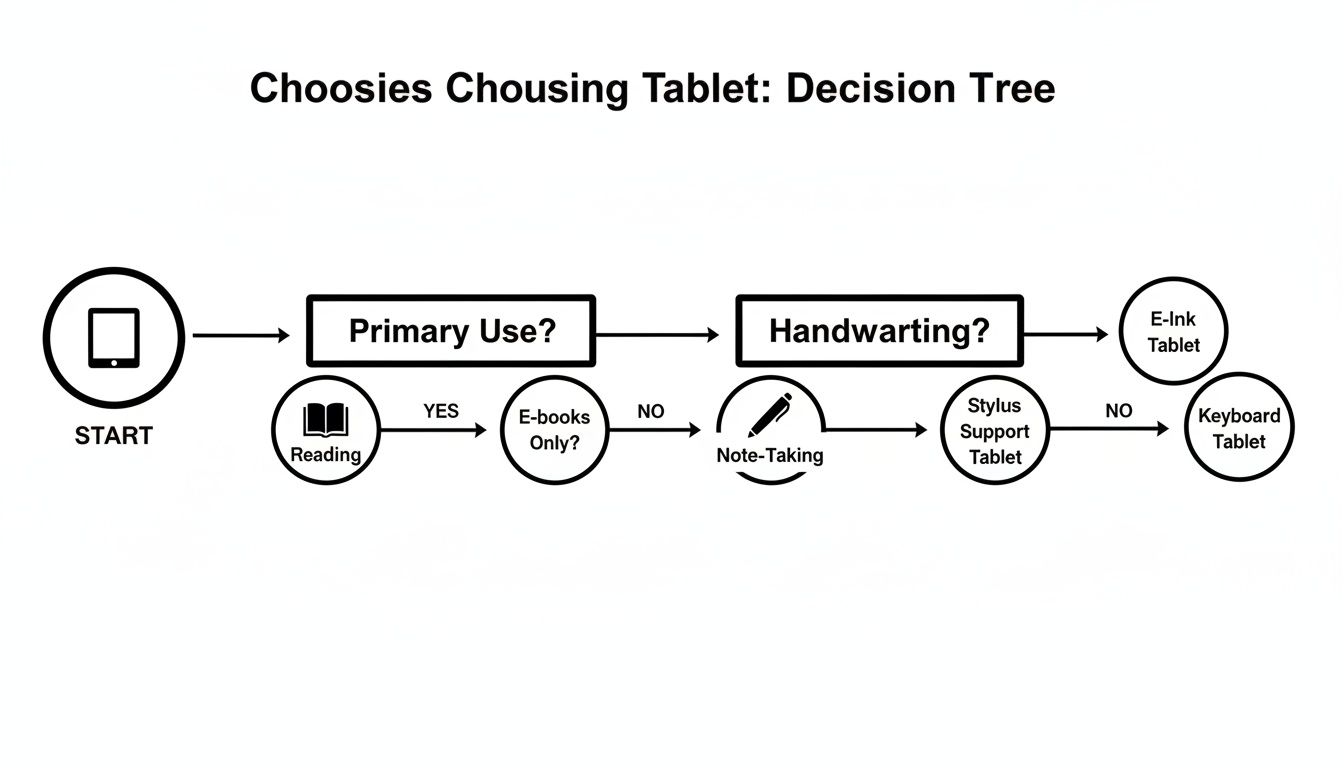
As you can see, the path starts with a simple question: what's more important to you, reading or note-taking? From there, your priorities for things like screen type or stylus feel will guide you to a much smaller, more manageable list of options. It's all about homing in on what matters most for your daily routine.
This table breaks down the three main categories to help you see where your needs might fit. It’s a quick-and-dirty guide to get you thinking about the right type of device.
| Tablet Category | Excels at Reading | Excels at Note Taking | Best For |
|---|---|---|---|
| Traditional Tablets (iPad, Android) | Excellent (especially media) | Very Good | All-around use, entertainment, and productivity. |
| E Ink Note-Takers (reMarkable, Boox) | Excellent (distraction-free) | Excellent | Dedicated, paper-like writing and reading text. |
| 2-in-1 Laptops (Surface Pro) | Good | Good | Users who need a full computer with tablet capabilities. |
Ultimately, whether you need a powerful, all-in-one device or a specialized digital notebook comes down to your personal workflow.
The screen is the soul of your tablet. It's the window to your books, your notes, and your ideas. Picking the right display isn't just a tech spec—it’s about comfort, clarity, and whether the device feels right for what you do. Think of it like choosing between a glossy magazine and a favorite paperback. Both are for reading, but the experience is completely different.
You're essentially choosing between two main philosophies: vibrant, backlit screens like LCD and OLED, or the quiet, paper-like E Ink displays. Understanding what makes them tick is probably the single most important step in finding the right tablet for reading and writing.
LCD and OLED screens are the jack-of-all-trades in the tablet world. These are the brilliant, colorful displays you'll find on devices like an iPad Air or Samsung Galaxy Tab. They produce stunningly rich colors and deep, inky blacks, which makes them fantastic for anything visual. If you’re reading graphic novels, medical textbooks with detailed illustrations, or research papers full of color-coded charts, these screens make that content shine.
Picture yourself flipping through a digital magazine. An OLED screen makes the photography leap off the page with incredible vibrancy, and the text looks razor-sharp. Since they generate their own light, you can use them anywhere, from a dark bedroom to a sunny coffee shop.
These displays are built for versatility. They handle academic PDFs and interactive websites just as easily as they stream Netflix, giving you a full-fledged media device on top of a great reading and writing tool.
But that backlight can be a double-edged sword. Staring into a light source for hours on end can cause eye strain for some people. It's a fundamentally different experience than reading a paper book, which simply reflects the light already in the room.
And that's where E Ink comes in. Devices like the reMarkable 2 and Kindle Scribe use E Ink technology, which is the closest you can get to digital paper. They don't have a backlight. Instead, they rely on the ambient light around you to be visible, just like the page of a book. This makes for an incredibly comfortable reading experience, especially for long stretches, and you get zero glare, even in direct sunlight.
For pure, distraction-free reading and writing, nothing beats E Ink. It creates a calm, focused environment that’s perfect for deep work, without the constant pull of notifications or the harsh glow of a traditional screen. There's good reason why people who read for hours swear by it; it's simply easier on the eyes.
The compromise? Most E Ink screens have slower refresh rates and limited (or no) color. That means they aren't great for watching videos or quickly browsing the web. Their strength is their singular, unapologetic focus on replicating the paper experience.
Once you've picked a technology, the screen's size and sharpness are the next big things to consider.
In the end, the best display is the one you don't even notice because you're so absorbed in what you're doing. Whether you need the flashy versatility of an OLED or the calm focus of E Ink, matching the screen to your primary goal is the key to making sure you love using your new tablet.
A brilliant screen is only half the battle when you're hunting for the perfect tablet for reading and notes. The other half—the part that truly matters—is the writing experience itself. It's all about the synergy between the stylus and the software, that magical combination that turns your hand movements into digital ink. A great tablet doesn't just let you write; it makes you forget you're writing on a screen at all.
This feeling isn't an accident. It comes from a delicate dance between hardware and software, all designed to mimic the intuitive, friction-free glide of a good pen across a fresh sheet of paper.
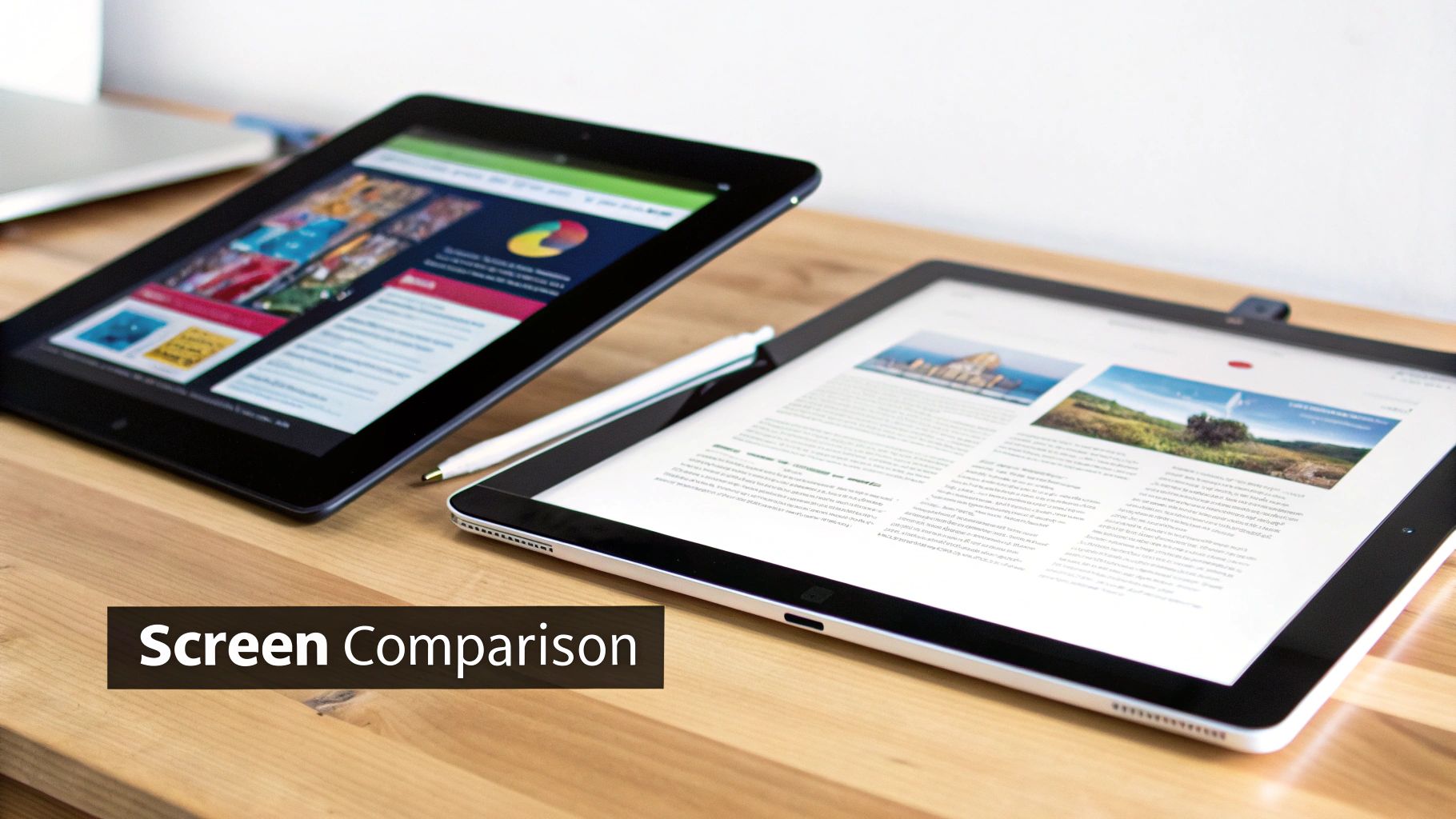
Let's be clear: not all styluses are created equal. The difference between a basic rubber-tipped stick and a sophisticated active stylus like an Apple Pencil is night and day. Premium styluses are packed with tech designed to capture every nuance of your handwriting.
For a top-tier note-taking experience, three features are absolutely essential:
A truly great digital writing setup feels invisible. The technology fades into the background, letting your thoughts flow directly from your mind to the page without interruption or technical frustration.
In the world of premium tablets, two names consistently come up: the Apple Pencil and the Samsung S Pen. Both are fantastic, but they come from slightly different schools of thought.
The Apple Pencil Pro is legendary for its precision, solid build quality, and virtually non-existent latency. Paired with an iPad, it creates an incredibly fluid and responsive experience that many artists and die-hard note-takers consider the gold standard. Extra features like squeeze gestures and barrel roll give power users even more control.
On the other hand, the Samsung S Pen is all about versatility and value. It often comes right in the box with Galaxy Tab devices and, get this, never needs to be charged. Beyond writing, it doubles as a handy remote control for presentations or media, adding a layer of utility that many people love.
A great stylus is only as good as the software that brings it to life. This is where powerful note-taking apps come in, transforming your tablet from a simple digital slate into an intelligent, infinitely organized notebook. Apps like GoodNotes and Notability have become essentials for a reason.
For many of us, the real magic is unlocking smarter ways to take notes on PDF documents, making research and studying far more effective. These apps offer features that paper just can't compete with:
This powerful hardware-software combo is why so many students and professionals have ditched paper for good. Apple's iPad, for instance, has long been a campus favorite. In Q2 2025 alone, Apple shipped a staggering 12.7 million iPads, claiming 33% of the global market. And it makes sense—a 2023 survey showed that 62% of U.S. college students prefer iPads, largely because of how perfectly the Apple Pencil works with apps like GoodNotes, which can register up to 4,096 levels of pressure sensitivity. This synergy creates a workflow that’s not just efficient, but genuinely helps you engage with and remember your material.
When you choose a tablet, you’re doing more than just picking out a shiny new gadget. You’re actually buying into a whole digital environment, or what we call an app ecosystem. This ecosystem is the world your tablet lives in—it determines which apps you can use, how they work together, and the overall vibe of your digital life.
Think of it this way: are you looking for a meticulously organized boutique, a sprawling and sometimes chaotic flea market, or a quiet, specialized library? Each has its own charm, and knowing the difference is the first step to finding a tablet that feels like it was made just for you.
Apple's iPadOS is often called a "walled garden," and for good reason. It’s a beautifully polished, secure, and tightly controlled space. Every app available has to pass Apple's strict quality checks, which means you get an incredibly smooth and dependable experience right out of the box.
The apps themselves are often seen as the gold standard, especially for creative work and productivity. But this curated perfection has a trade-off: you give up some freedom. Customizing the system or managing your files isn't as open as on other platforms. If you're weighing creative tools, our photo editing software comparison explores similar ideas about picking the right tools for the job.
If iPadOS is a pristine garden, Android is an open-world playground. It’s all about freedom and flexibility. You can tweak just about anything, from your home screen layout to deep system settings, and you have a massive variety of tablets to choose from across different brands and price points.
This open approach means you can easily drag and drop files and find an app for almost anything you can imagine, though the quality can be a bit of a mixed bag compared to Apple's store. Android is the clear winner for anyone who loves to tinker and wants their device to bend to their will.
Choosing an ecosystem is a long-term commitment. You are investing not just in a device, but in a library of apps and services that will become central to your daily reading and writing habits.
Moving away from the two big players, you'll find specialized operating systems built for one thing and one thing only. Devices from reMarkable and Boox run on minimalist, Linux-based systems designed from the ground up for reading and writing on E Ink displays.
These systems are intentionally stripped down. You won’t find a web browser, a social media app, or any games to pull you away from your work. The goal is to create a peaceful, distraction-free environment that feels like paper, making it perfect for deep focus and concentration. Just don't expect it to do much else.
No matter which ecosystem you land in, you’ll likely be dealing with a lot of documents. For students and researchers, weaving smart tools into your workflow is a must. This AI PDF Summarizer Guide is a great resource for learning how to cut through the noise in long reports or academic papers, helping you absorb key information much faster.
Alright, we've covered the tech specs, the styluses, and the software. Now, let's get down to the fun part: putting it all together and looking at the actual devices that get the job done. I've sifted through the market to find the best tablets out there right now, specifically for reading and taking notes.
Think of this as your shortlist. Whether you’re a power user who needs a do-it-all machine or someone who just wants a simple, focused digital notebook, one of these is probably the right fit for you.
If you're looking for one device that nails almost everything without the "Pro" price tag, the Apple iPad Air is it. It’s become the go-to recommendation for a reason—it beautifully balances power, design, and usability.
The Liquid Retina display makes text look incredibly crisp, which is a dream for long reading sessions. And when you pair it with an Apple Pencil, the note-taking is just flawless. The responsiveness is so good you'll forget you're writing on a screen.
For anyone who loves the freedom of the Android ecosystem, the Samsung Galaxy Tab S9 is the answer. The first thing you'll notice is its Dynamic AMOLED 2X display. The colors are incredibly vibrant and the blacks are truly black, making everything from PDFs to comics look spectacular.
The real kicker? Samsung gives you the fantastic S Pen right in the box, which is a huge win. You don't have to buy it separately, and it's packed with smart features that make it a productivity beast from day one.
The Galaxy Tab S9 is the best choice if you want a premium reading and writing experience without being locked into Apple's ecosystem. Its DeX mode, which gives you a surprisingly capable desktop-like interface, is perfect for those times you need to do more than just read and write.
Are you constantly pulled away by notifications and the temptation to check just one more thing? The reMarkable 2 was built for you. This isn't your typical tablet; it's a dedicated digital paper device.
It uses a unique E Ink display that looks and feels astonishingly like paper. There's zero glare, so you can read on it for hours, even in bright sunlight, without straining your eyes. The writing experience, with the subtle friction of the stylus on the screen, is as close as you can get to pen on paper. This is a tool for deep focus.
For students, or really anyone who wants that polished iPad experience without breaking the bank, the standard Apple iPad (10th Generation) is an incredible deal. You get a fantastic screen, plenty of power for everyday tasks, and full access to that incredible library of apps.
It uses the Apple Pencil (1st Gen), but don't let that fool you—the note-taking is still top-notch for lectures, meeting minutes, and marking up documents. It’s a brilliant way to get into digital note-taking.
This type of versatile, detachable tablet is a huge part of the market's growth. Projections show the industry is expected to jump from USD 72.7 billion in 2025 to a whopping USD 166.46 billion by 2033. This boom is really driven by devices like the standard iPad, which make powerful tools so much more accessible. You can get more insights on the tablet market here if you're curious about the trends.
To help you see how these devices stack up at a glance, here’s a quick comparison of the key features that matter most for our purposes.
| Model | Display Technology | Stylus Experience | Standout Feature | Price Point |
|---|---|---|---|---|
| Apple iPad Air | Liquid Retina IPS | Excellent (Apple Pencil 2) | Perfect balance of power and price | Mid-to-High |
| Samsung Galaxy Tab S9 | Dynamic AMOLED 2X | Excellent (S Pen included) | Stunning display and DeX mode | High |
| reMarkable 2 | E Ink (Digital Paper) | Unmatched paper-like feel | Completely distraction-free | Mid-Range |
| Apple iPad (10th Gen) | Liquid Retina IPS | Very Good (Apple Pencil 1) | Best value in the Apple ecosystem | Entry-Level |
This table should make it easier to weigh what’s most important to you—whether it's the absolute best screen, the most natural writing feel, or the smartest buy for your budget.
A great tablet is just the start. The right accessories can completely change how you use your device, turning it from a simple media viewer into a serious tool for work and creativity. Think of them as unlocks that solve common frustrations and make your daily routine a whole lot smoother.
For many people, especially those who take a lot of notes, the key to unlocking a tablet's potential starts with changing how the screen itself feels. This is where a couple of key accessories really shine.
Let's be honest: writing on a slick glass screen feels… weird. It’s slippery and lacks the satisfying friction of a real pen on paper, which can make your handwriting look a bit sloppy. It’s one of the biggest complaints I hear from people moving from paper notebooks to digital.
A matte screen protector is the answer. Brands like Paperlike have nailed this by creating a surface texture that adds just the right amount of resistance.
The whole point is to mimic the tactile feedback of writing on a physical page. That slight drag gives you more control over your stylus, leading to neater handwriting and a much more natural feel during long study sessions.
This one accessory can make a world of difference, bridging the gap between digital convenience and the comfort of analog tools. Plus, it cuts down on glare, which is a huge win if you ever use your tablet outside.
A stylus is fantastic for notes and sketches, but when it's time to type, nothing beats a physical keyboard. A good keyboard case instantly turns your tablet into a surprisingly capable little workstation. It’s perfect for banging out an essay, clearing your inbox, or even coding on the move.
This flexibility is what makes a tablet so powerful for students and professionals. You can go from handwriting lecture notes to typing up a report in the library, all on one device. If you're looking for recommendations, our guide to the best portable Bluetooth keyboards breaks down some of the top options out there.
To give you an idea of how this all comes together, here’s a common workflow for a student:
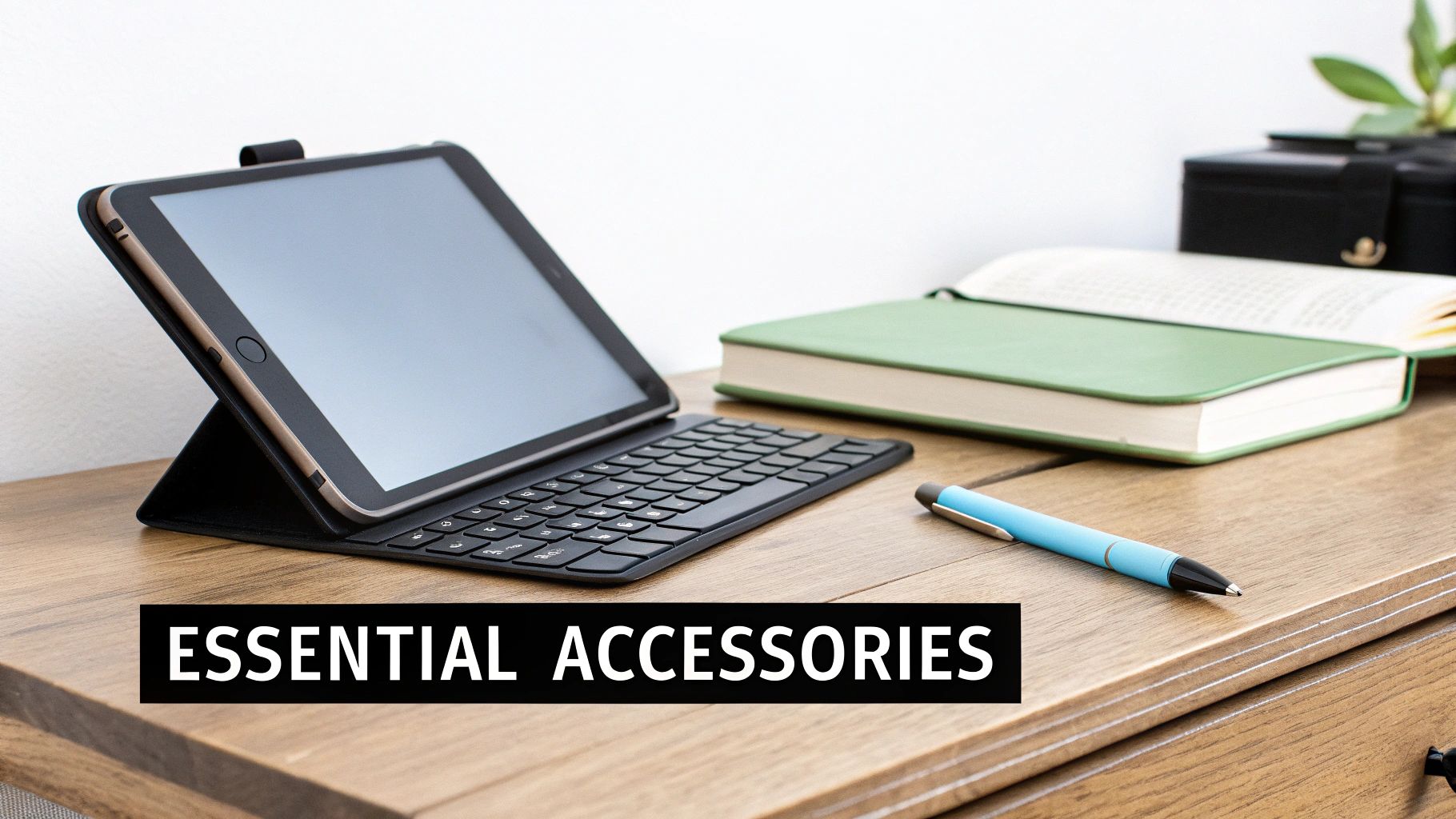
Even with all the details covered, a few key questions always come up when you're trying to pick the best tablet for reading and note taking. Let’s clear up some of the most common ones so you can feel totally confident in your choice.
I wish it were that simple, but no. It's a common mix-up. High-end styluses like the Apple Pencil or Samsung's S Pen are built to communicate with specific digitizer technology built into the screens of their own devices. That’s how they deliver incredible features like pressure sensitivity and palm rejection.
You can use a generic, rubber-tipped "capacitive" stylus on any touchscreen, but the experience is pretty awful for writing. Think of it like trying to write with your fingertip—it's clumsy and lacks the precision you need for actual note-taking.
Strictly speaking, no, you don't need one. But if you're serious about taking notes, I can't recommend it enough. Trying to write on a slippery glass screen feels unnatural. Your stylus tip just glides around with no resistance, which can make your handwriting look like a mess.
A matte screen protector adds a subtle, paper-like texture to the screen. That little bit of friction gives you way more control over the stylus, making your notes neater and the entire writing experience more satisfying.
As a bonus, it also cuts down on glare, which is a lifesaver when you're trying to read outside or under bright overhead lights.
This really boils down to how you plan to use your tablet. Let's break down the common tiers:
Don't forget that cloud storage is your friend and can help you get by with less internal space. Still, it’s always smart to have a little more local storage than you think you’ll need—it’s crucial for offline access and keeps things running smoothly.
Ready to find the perfect tablet and gear for your setup? At FindTopTrends, we track down the best tech to make your decision easy. Check out our curated picks of top-rated tablets and accessories today at https://findtoptrends.com.




