


No products in the cart.


Free Shipping Australia-Wide

5 star customer service

Quality Tested Products

Picking the best external hard drives for backup really comes down to what you're trying to do. If you need a massive digital vault for long-term storage, a high-capacity HDD like the WD My Passport Ultra is a reliable, budget-friendly choice. But if you're constantly on the move and need fast, durable access to your files, an SSD like the Samsung T9 is in a league of its own.
Let's be real: selecting the right external drive is the most critical step you can take to protect your digital life. It's your first line of defense against everything from a simple "oops, I deleted that" moment to a catastrophic hard drive crash. A dedicated backup drive isn't just another gadget—it's the core of your digital safety net.
The market is flooded with options, though, and they all serve different purposes. A professional photographer backing up massive photo shoots in the field has entirely different needs than a family archiving decades of home videos. To make the right call, you have to understand your own habits and what you might need down the road. Before you start shopping, it's a good idea to have a solid strategy in mind. This a comprehensive guide to backing up data is a great starting point for understanding best practices.
I'm here to help you cut through the marketing noise and choose with confidence. We’ll walk through the essential factors to give you a clear roadmap for making a smart decision.
Here’s what really matters:
The question isn't if your primary drive will fail, but when. Having a reliable backup drive ready to go is the only way to prepare for that eventuality and protect what's important to you.
To get you started, I've put together a quick cheat sheet that matches common needs with the best type of drive.
This table breaks down which drive type makes the most sense for different kinds of users, helping you narrow down your search from the get-go.
| User Profile | Primary Need | Recommended Drive Type | Key Feature |
|---|---|---|---|
| Home User / Family | Archiving photos, videos, and documents | Desktop HDD | High capacity for a low cost |
| Student / Commuter | Portability and frequent, small backups | Portable SSD | Compact, durable, and fast |
| Creative Professional | Fast access to large project files | High-Speed External SSD | Thunderbolt/USB4 connectivity |
| Small Business Owner | Reliability and automated backups | Desktop HDD with Backup Software | Set-and-forget data protection |
Think of this table as your starting point. Once you identify which profile fits you best, you can dive deeper into specific models that have the features you need.
When you're looking for the right external drive for backups, the first big choice you'll make is between a traditional Hard Disk Drive (HDD) and a modern Solid-State Drive (SSD). They both store your files, of course, but how they do it is completely different. This isn't just a technical detail; it directly impacts what kind of backup strategy each is best suited for.
An HDD is the old-school workhorse. Inside, it has spinning magnetic platters and a read/write arm that zips back and forth to access your data—kind of like a high-tech record player. This mechanical design is why HDDs have long been the kings of cheap, massive storage.
On the other hand, an SSD is all-electric. It uses interconnected flash-memory chips, much like a giant USB stick. There are no moving parts, which makes it incredibly fast and much tougher.
The number one reason HDDs are still so popular for backups is simple: you get way more storage for your money. If your goal is to create a massive archive of family photos, home videos, or huge project files from over the years, an HDD is your best friend. It gives you an enormous amount of space without emptying your wallet.
Think about a videographer who needs to offload 8TB of raw footage for long-term storage. An external HDD is really the only affordable and practical choice. The slower speed is a non-issue for a "set it and forget it" task. For any kind of "cold storage"—data you need to keep safe but won't touch often—the economics of an HDD just make sense.
And the need for this kind of storage is only growing. The external hard disk market is expected to grow by USD 3.76 billion between 2025 and 2029, a trend driven by our ever-increasing need to back up our digital lives.
This is where SSDs leave HDDs in the dust. Because they don't have fragile moving parts, they're naturally more durable. You can toss one in a backpack or handle it on a bumpy car ride without worrying. For students, photographers on location, or anyone on the move, that physical resilience is a huge deal.
But the real game-changer for SSDs is their speed. A daily backup that might take several minutes on an HDD can be over in seconds with an SSD. That speed is absolutely essential for more demanding backup jobs.
Here are a few situations where an SSD is the only way to go:
This quick decision guide can help you match your main goal to the right drive.
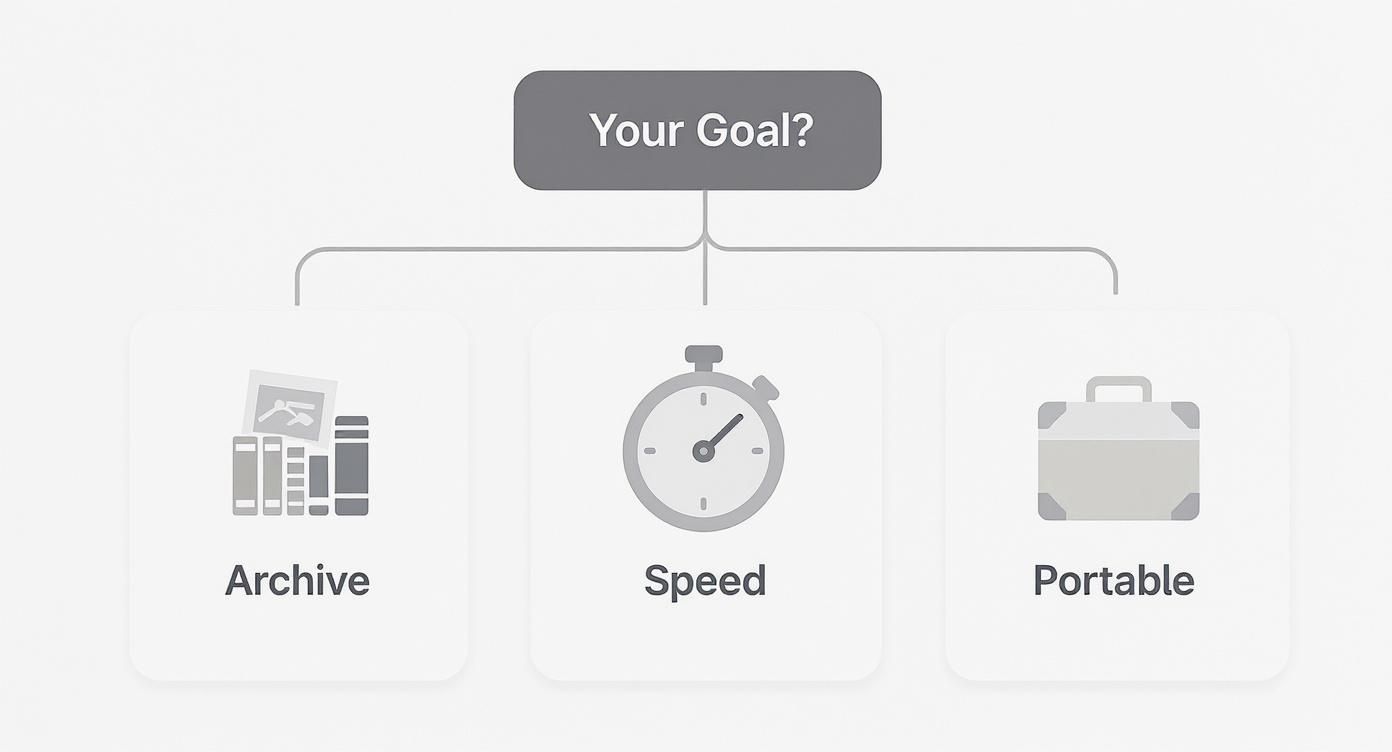
As the visual shows, if your top priority is archiving tons of data on a budget, an HDD is the clear winner. But if you need speed for frequent backups or a tough drive for travel, an SSD is the way to go.
It's easy to assume SSDs are always more reliable because they lack moving parts, but the truth is a bit more nuanced. While they're much better at surviving drops and bumps, their flash memory cells can only be written to a finite number of times. For normal backup use, you'll likely never hit this limit, so it's not a major concern.
However, data recovery is a factor people often forget. When an HDD fails, it's often a mechanical problem. A professional data recovery service can sometimes physically repair the drive and get your files back. When an SSD's controller chip fails, the data can become instantly and permanently inaccessible, essentially locked away forever. For truly mission-critical archives, this gives a slight, last-resort advantage to HDDs.
Once you've decided between an old-school hard drive and a zippy SSD, the real work begins. There are a handful of features that can make or break a backup drive, turning it from a simple data bucket into a reliable safety net for your digital life. Getting these details right is what separates a smart purchase from a future headache.
The most obvious spec is capacity, but simply matching your computer's storage is a rookie mistake. A good rule of thumb I always follow is to buy a backup drive with at least twice the capacity of the data you plan to back up.
This buffer zone isn't just for show; it gives you breathing room for your growing collection of photos, videos, and projects. It's also essential if you're using versioned backup software like Apple's Time Machine, which saves multiple historical snapshots of your files and eats up space over time.
Nobody likes staring at a progress bar. How fast your backup finishes depends on both the drive's internal tech and the cable connecting it to your computer. Even the world's fastest SSD will crawl if it's plugged into an ancient, slow port.
Today’s drives almost exclusively use USB or Thunderbolt, and knowing the difference is key to getting the speed you pay for.
Before you shell out for a high-speed drive, check the ports on your computer. There's no point in paying for a 40 Gbps drive if your laptop can only handle 5 Gbps. The connection will always run at the speed of the slowest component.
If your backup drive ever leaves your desk, its physical toughness becomes a top priority. A portable drive needs to be more than just small; it needs to be resilient. This is where you'll see specific durability ratings come into play.
For instance, rugged drives like the LaCie Rugged series often advertise their IP ratings (Ingress Protection). A drive with an IP67 rating is completely sealed against dust and can even survive a 30-minute dunk in up to a meter of water.
For a photographer shooting in the desert, a student whose drive lives in a cluttered backpack, or a field researcher, features like shock resistance and an IP rating aren't just marketing fluff. They are the first line of defense for keeping your data alive.
Keep an eye out for models with rubberized shells, stated drop-resistance heights (e.g., tested from 2 meters), and crush-resistance specs. These features are a physical shield against the bumps, drops, and spills of the real world.
Finally, for anyone backing up sensitive personal or business files, solid security is a must-have. The gold standard here is hardware-based AES 256-bit encryption. This type of encryption happens on the drive itself, completely separate from your computer.
It's a much more secure approach than software-only encryption, which can be bypassed by malware on your machine. If a hardware-encrypted drive is ever lost or stolen, the data is essentially locked in a digital vault without the password.
Many manufacturers also include some handy software to sweeten the deal.
While you don't need this bundled software, it can definitely make managing your drive and automating your backup routine a whole lot easier.
Alright, you know what to look for in a backup drive. Now, let's get into the good stuff and break down the models that truly stand out from the crowd. We've handpicked our favorites based on different needs and budgets, so you can find the perfect fit.
Instead of just rattling off a spec sheet, I'm going to dig into what makes these drives excel in the real world. We'll look at how they actually perform, how reliable they are, and what unique features set them apart. This is about making a smart choice, not just a quick one.
For most of us, the goal is pretty simple: get a ton of storage without breaking the bank. When you’re talking about pure cost-per-gigabyte, nothing can touch a classic spinning hard drive (HDD). This is the sweet spot for archiving years of photos, building out a media library, or creating a full system image.
Model Spotlight: WD My Passport Ultra
There's a reason the WD My Passport Ultra shows up on "best of" lists year after year. It hits that perfect balance of high capacity, solid reliability, and handy features, all squeezed into a drive that fits in your palm. With options up to 6 TB, you'll have more than enough room for even the biggest data collections.
What really seals the deal for backups is the software that comes with it. WD bundles tools that make scheduling automatic backups a breeze, and they include 256-bit AES hardware encryption to keep your private files locked down. It’s the ideal "set it and forget it" solution. Sure, it’s not the fastest drive on the planet, but for overnight backups, it's all you need.
The real value of an HDD like the My Passport Ultra isn't its speed, but its role as a digital vault. It offers an incredibly affordable way to ensure every memory and important document has a safe, secondary home.
If your backup drive lives in your backpack, or you just can’t stand waiting around for large files to transfer, then a portable SSD is a must. These things are built for life on the move, offering ridiculous speeds and the toughness to survive the occasional bump or drop. This is the category for photographers, videographers, students, and any professional on the go.
Model Spotlight: Samsung T7 Shield
The Samsung T7 Shield is an absolute tank. Its standout feature is its rugged design—it has an IP65 rating, which means it’s protected from dust and water, and it’s built to survive a fall from up to 3 meters. For anyone working out in the field or just commuting with their gear, that kind of physical security is priceless.
But it’s not just tough; it's also incredibly fast. The T7 Shield rocks a USB 3.2 Gen 2 connection, hitting read/write speeds of up to 1,050 MB/s. In practical terms, that means you can back up a huge folder of high-res photos or a 4K video project in minutes, not hours. It’s the perfect drive for a photographer offloading memory cards on location.
For serious users, creative professionals, and small businesses, backups need a home base. A high-capacity desktop drive acts as a central, always-on hub for backing up multiple machines, archiving massive projects, and ensuring you can get back to work after a disaster. These drives trade portability for raw capacity and long-term reliability.
Model Spotlight: Seagate Expansion Desktop
The Seagate Expansion is a no-frills workhorse. It was built to do one thing and do it extremely well: store an insane amount of data. With capacities that go all the way up to 20 TB, this drive can easily act as the central backup vault for a small office or a power user with a serious media habit.
Unlike its portable cousins, this drive needs to be plugged into the wall, but that’s what allows it to house a full-size 3.5-inch drive, giving you the best bang for your buck on massive storage. Setup is dead simple—just plug it in. It doesn't have fancy software, but its strength is its straightforward, reliable function.
This drive is perfect for:
The demand for this kind of serious storage is only growing. The global hard disk market is expected to jump from USD 66.6 billion in 2025 to USD 111.2 billion by 2035, which tells you just how critical reliable backups have become.
To give you a quick, at-a-glance view of how these drives stack up, check out the comparison table below. It highlights the key specs so you can see which one aligns best with your needs. Getting the timing right can also save you some money; our guide on the best time to buy electronics can help you snag a great deal.
| Model | Type | Capacity Range | Key Feature | Best For |
|---|---|---|---|---|
| WD My Passport Ultra | Portable HDD | 1 TB - 6 TB | Bundled Backup & Encryption Software | Everyday home users needing affordable mass storage. |
| Samsung T7 Shield | Portable SSD | 1 TB - 4 TB | IP65 Rating & 3-Meter Drop Resistance | Travelers, photographers, and users needing speed and durability. |
| Seagate Expansion Desktop | Desktop HDD | 4 TB - 20 TB | Maximum Capacity for the Lowest Cost | Professionals and home offices needing a central backup hub. |
At the end of the day, the right drive is the one that fits your life. Whether you need the massive, affordable space of the Seagate Expansion, the do-it-all convenience of the WD My Passport, or the blazing-fast, rugged design of the Samsung T7 Shield, there’s a perfect solution out there to keep your data safe.
Having one of the best external hard drives for backup sitting on your desk is a great start, but it's only half the battle. To truly safeguard your files, you need a system that works in the background, reliably and automatically. After all, a drive is useless if you forget to actually back up your data.
The very first step in building a solid backup strategy is prepping your new drive. It needs to be formatted to work correctly with your computer's operating system, which erases everything on it and sets up the proper file system.
Before you can get any backups running, you have to format the drive. It’s a simple process, but it’s absolutely essential for compatibility and performance.
For Windows Users (NTFS): Plug in your drive, open File Explorer, then right-click on the drive and choose "Format." For the file system, select NTFS (New Technology File System). This is the native format for Windows, so you'll get the best performance and security features.
For macOS Users (APFS): Connect the drive and open the Disk Utility app. Find your external drive in the list on the left, click the "Erase" button at the top, and choose APFS (Apple File System). APFS is the modern standard for macOS, specifically designed for the speed of SSDs.
Once the format is complete, your drive is a blank canvas, ready to work with your computer’s built-in backup tools.
The easiest and most dependable way to handle backups is to let your computer manage them for you. Both Windows and macOS have fantastic, free tools built right in for this very task.
On macOS: Time Machine
Time Machine is Apple's classic "set it and forget it" backup software. The first time you connect a freshly formatted drive, your Mac will probably ask if you want to use it for Time Machine. If it doesn't, setting it up is easy:
On Windows: File History
File History is the equivalent tool on Windows, and it focuses on protecting your personal files. It automatically makes copies of everything in your main user folders, like Documents, Pictures, Desktop, and so on.
An automated backup is your single best defense against data loss. Relying on your memory to run manual backups is a recipe for disaster. It’s not a matter of if you'll forget, but when.
While the built-in tools are perfect for most people, some situations call for more powerful software. You might want to look into third-party backup tools if you need to do things like:
For the vast majority of us, though, just turning on Time Machine or File History is enough. It transforms your new external drive from a simple storage device into a silent, tireless guardian for all your important files.
Even after you've picked the perfect external drive, a few nagging questions can pop up. Let's walk through some of the most common ones I hear, so you can feel completely confident about your backup plan and how to keep your data safe for the long haul.
This is the big one, and the answer really depends on the technology inside. A traditional hard disk drive (HDD), with all its spinning platters and moving parts, has a typical lifespan of three to five years. Think of it like a car; eventually, the mechanical parts wear out.
An SSD is a different beast. Since it has no moving parts, it doesn't suffer from the same mechanical wear. Its lifespan is measured in "write cycles," but for normal backup use, you're incredibly unlikely to ever hit that limit.
Here's the most critical thing to remember: no drive is immortal. It’s not a question of if it will fail, but when. That’s precisely why having more than one backup is the only real way to guarantee your data's safety.
When your drive finally does give up the ghost, it’s crucial to know how to recycle external hard drives correctly. This protects your sensitive data from being recovered and is much better for the environment.
Technically, yes, but it comes with some serious compromises. Most drives you buy are pre-formatted for either Windows (using a system called NTFS) or macOS (using APFS). Neither operating system can natively write files to the other's format.
To make a drive work on both, you have to format it to a universal file system like exFAT. This is fine for shuffling files back and forth, but it's a poor choice for dedicated system backups. Tools like Apple's Time Machine or Windows' File History are designed to work best with their native formats. For automated, reliable system backups, you really should have a dedicated drive for each OS.
The need for dependable storage isn't just a personal concern; it's a massive global market. The hard disk industry, valued at around USD 64.72 billion in 2025, is projected to climb past USD 112.66 billion by 2035, driven by the ever-growing need for solid backup solutions in both homes and businesses. You can learn more about hard disk market trends to see what's fueling this growth.
If you take away one thing from this guide, let it be the 3-2-1 backup rule. It’s a simple, time-tested strategy that provides nearly bulletproof protection for your files.
Here’s the breakdown:
This leads to another practical question: should you leave your backup drive plugged in all the time? It's convenient for automatic backups, sure. But keeping it constantly connected also exposes it to the same risks as your computer, like power surges or a ransomware attack that could encrypt both your machine and your backup.
A smart compromise is to connect the drive for its scheduled backup, then unplug it afterward. This is especially good practice for your secondary or archival drive, as it keeps your ultimate safety net isolated from daily digital threats.
At FindTopTrends, we're dedicated to helping you find the perfect tech essentials to safeguard your digital life. Explore our curated selection of high-quality storage solutions and trending gadgets by visiting our marketplace at https://findtoptrends.com.




